Executive Summary
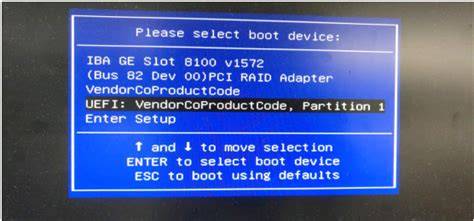
boot vendorcoproductcode Vendorco productcode — The only thing it means is that the manufacturer of your USB drive was too cheap to program the controller chip with the correct name.
Encountering VendorCoProductCode in your system's boot sequence can be perplexing, especially when you're aiming to boot from a specific deviceBOOT This entry often signifies your notebook or PC recognizing a connected USB drive as a potential boot option, but without the manufacturer providing a specific, recognizable nameVendorCo ProductCode USB Device firmware This can occur for various reasons, from a deliberate cost-saving measure by the manufacturer to a more technical issue with the device's firmwareVendorCo ProductCode USB device fake
The primary purpose of this entry is to allow your system to bypass its standard boot order and initiate the boot process from an external storage deviceVendorCo ProductCode 2.00 This is crucial for tasks such as installing a new operating system, performing system recovery, or running diagnostic toolsselect the USB flash drive or CD-ROM you wish to boot from When you see UEFI: VendorCoProductCode, it specifically indicates that your system is configured for UEFI (Unified Extensible Firmware Interface) booting, and it's attempting to recognize the USB device within that frameworkVendorCo ProductCode USB device 2TB
Decoding the "VendorCoProductCode" Mystery
The term VendorCoProductCode itself is a placeholderVendorCoProductCode It's generated when the USB device's controller chip lacks the proper descriptive information that would normally identify the manufacturer (VendorCo) and the specific product (ProductCode)Vendorco USB drive is corrupted While some users report this as a sign that the manufacturer "was too cheap to program the controller chip with the correct name," it can also be a symptom of other issuesVendorCo ProductCode 2.00
* Default Identifiers: In some cases, VendorCoProductCode is simply the default identifier used by the hardware when a custom name isn't programmedVendorCo ProductCode USB Device firmware This is common with generic or unbranded USB drivesyour notebook recognizing a connected USB drive as a potential boot option
* Firmware Issues: A corrupted or outdated firmware on the USB drive can also lead to this generic namingBoot This is where exploring options for VendorCo Product Code USB Device firmware updates might become relevant, though such updates are not always readily available for all devicesVendorco productcode 2.00 Partition 1
* UEFI Booting Specifics: When dealing with UEFI vendorco productcode 2VendorCo ProductCode USB Device firmware00 partition 1 or UEFI vendorco productcode 2VendorCo ProductCode USB Device00 partition 2, it highlights the UEFI environment's interpretation of the driveboot UEFI systems often require specific formatting, such as a FAT32 partition, to successfully boot from a USB driveUEFI vendorco productcode 2.00 partition 2
Troubleshooting and Booting from USB
If you're trying to boot from a USB drive and see VendorCoProductCode as an option, here's how to approach it:
1VendorCo ProductCode USB Device Accessing the Boot Menu: To select the USB flash drive or CD-ROM you wish to boot from, you'll typically need to access your computer's BIOS or UEFI settingsVendorCoProductCode This is usually done by pressing a specific key (like F2, F10, F12, or Del) immediately after powering on your computerVendorco productcode The exact key varies by manufacturerboot Many guides offer USB BOOT HowTo for each Hardware Vendor, listing these specific keys for brands like ACER and othersBOOT
2your notebook recognizing a connected USB drive as a potential boot option Prioritizing Boot Devices: Within the BOOT menu or BIOS, you'll find an option to change the boot order or boot sequenceVendorCo ProductCode USB device repair You'll need to set the USB drive (identified as VendorCoProductCode or similar) as the first boot deviceselect the USB flash drive or CD-ROM you wish to boot from For instance, some users report seeing options like "UEFI: (Generic Flash Disk 8VendorCo USB driver download07, partition 1)" which serves a similar purposeVendorCo USB driver download
3VendorCo ProductCode USB device fake Creating a Bootable USB: Ensure your USB drive is properly formatted and contains the necessary bootable filesBOOT For operating system installations like Windows, creating a bootable UEFI USB flash drive for installing Windows typically involves using tools like the Media Creation Toolyour notebook recognizing a connected USB drive as a potential boot option
4VendorCo ProductCode USB device 2TB UEFI vsVendorCo ProductCode USB device 2TB Legacy BIOS: Be aware of whether your system is set to UEFI or Legacy BIOS modeVendorCo ProductCode 2.00 Most modern computers use UEFIVendorCo ProductCode USB device repair If your Windows 10 bootable USB has 2 UEFI partitions, it might indicate an issue with how the drive was created or formatted for UEFI bootingVendorCo ProductCode USB device repair Generally, most computers will only boot in UEFI mode from a FAT32 partitionVendorco USB drive is corrupted
5VendorCo ProductCode 2.00 Potential Issues: If the VendorCo Product Code USB Device is not recognized correctly, or if you encounter errors like "Windows USB will not boot past the logo!", it could be due to a faulty USB port, a corrupted USB drive (Vendorco USB drive is corrupted), or an incompatibility with the UEFI vendorco productcode 2select the USB flash drive or CD-ROM you wish to boot from00 partition setupVendorco productcode 2.00 Partition 1
Verifiable Information and Best Practices
* Vendor ID and Product ID: For advanced users, tools exist to Find Vendor and Product ID for USB DeviceVendorCo ProductCode 2.00 This can help in identifying the actual manufacturer and model of the USB device, even if it's displaying as VendorCoProductCodeVendorCo ProductCode USB device 2TB
* Formatting: When preparing a USB drive for booting, especially for operating system installations, using a reliable method such as How to Format a USB Flash Drive in Windows and Mac - Kingston can prevent issuesVendorco productcode 2.00 Partition 1
* **System
Related Articles
Frequently Asked Questions
Here are the most common questions about boot vendorcoproductcode.
Leave a Comment
Share your thoughts, feedback, or additional insights on this topic.